
Easy mode guides you through five steps. You can go back at any time before the outline is generated.
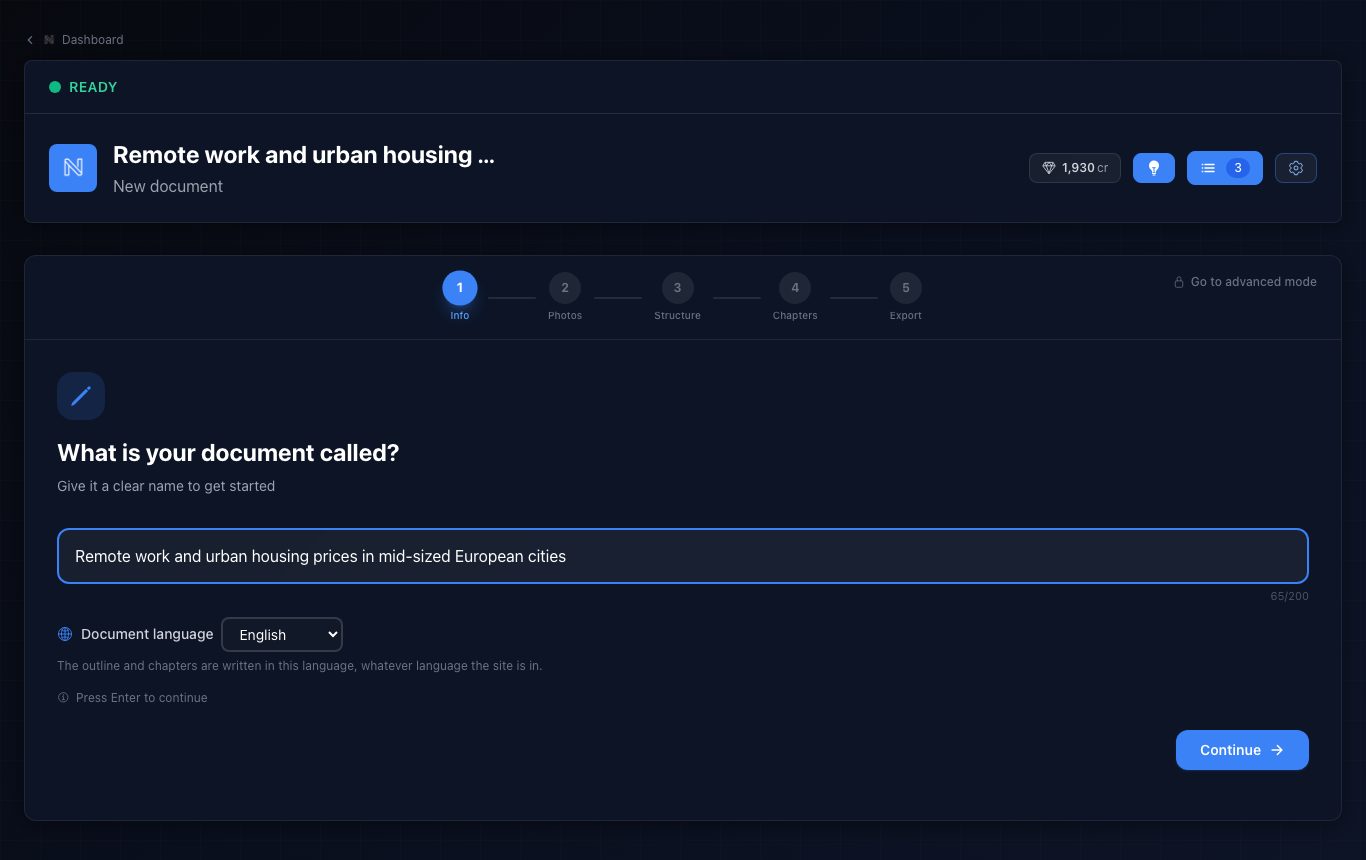
1. Title and language
Type the title and choose the language the document should be written in. If you paste a long brief into the title, Nomos moves it to the content step.
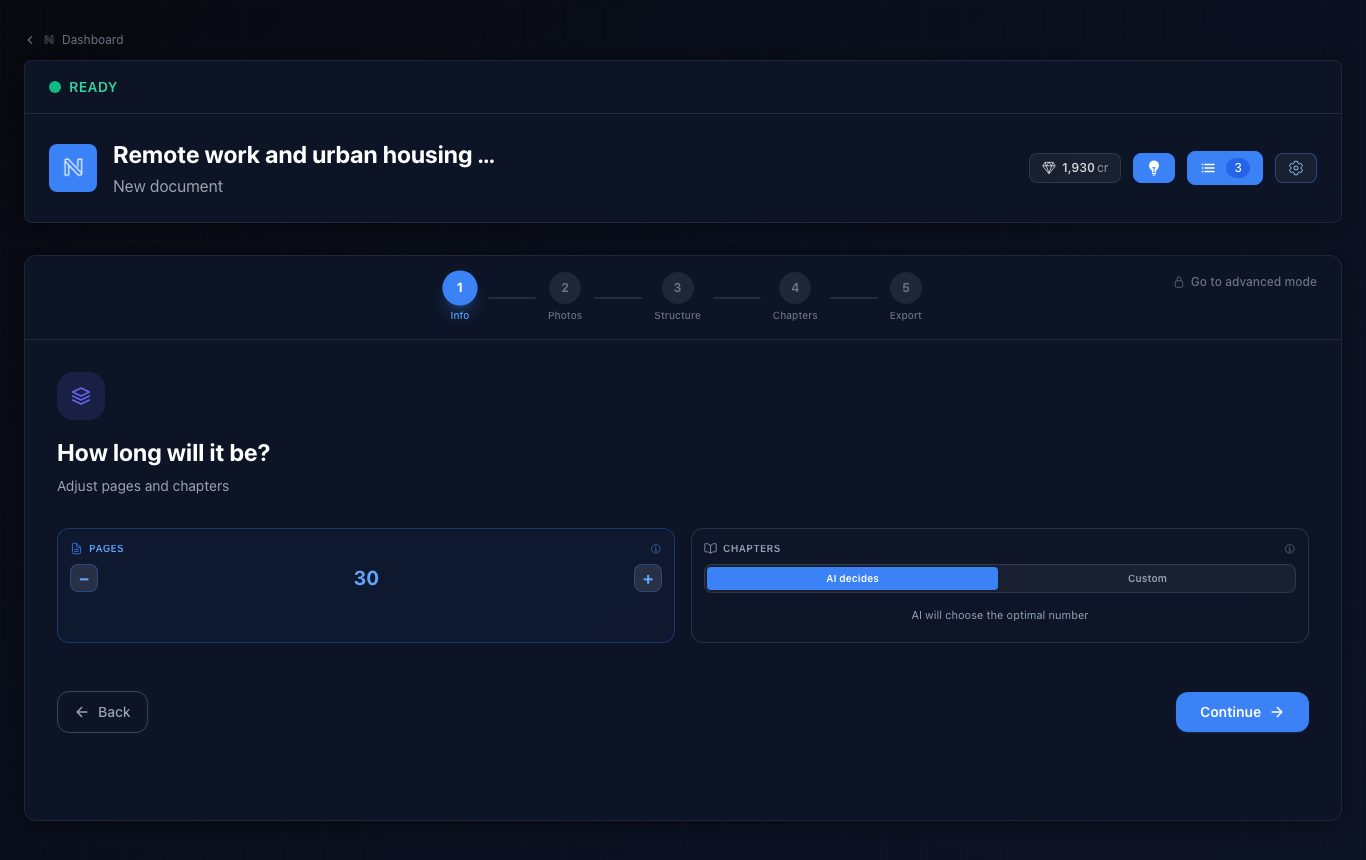
2. Length
Choose roughly how many pages you want. The AI can decide the number of chapters, or you can.
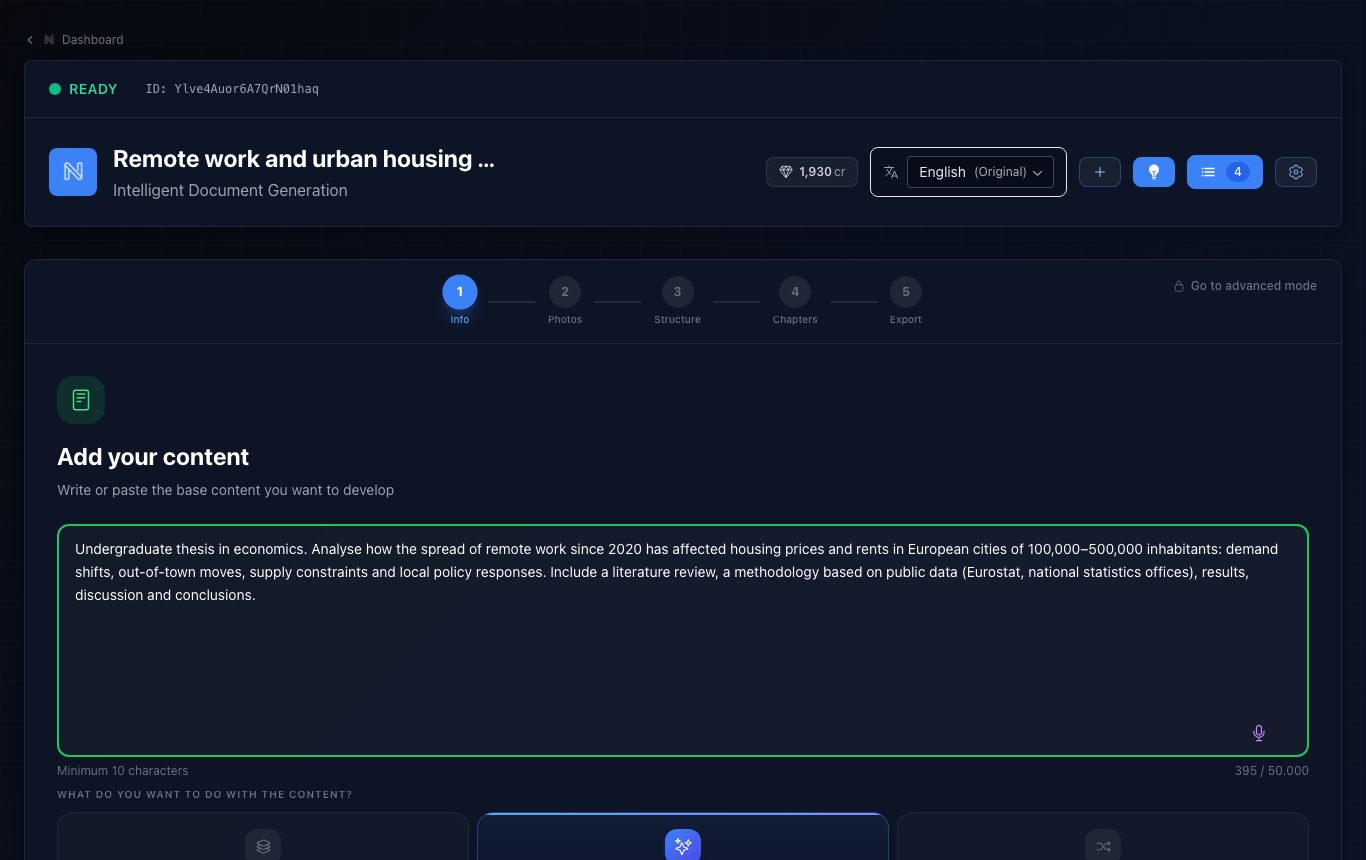
3. Content
Explain what you want: topic, approach, required sections, data, notes… The more specific, the better. Choose whether Nomos should create new content, lay out text you paste, or mix both, and whether it may search the web (+10 credits). You can also upload reference documents (see “Sources”).
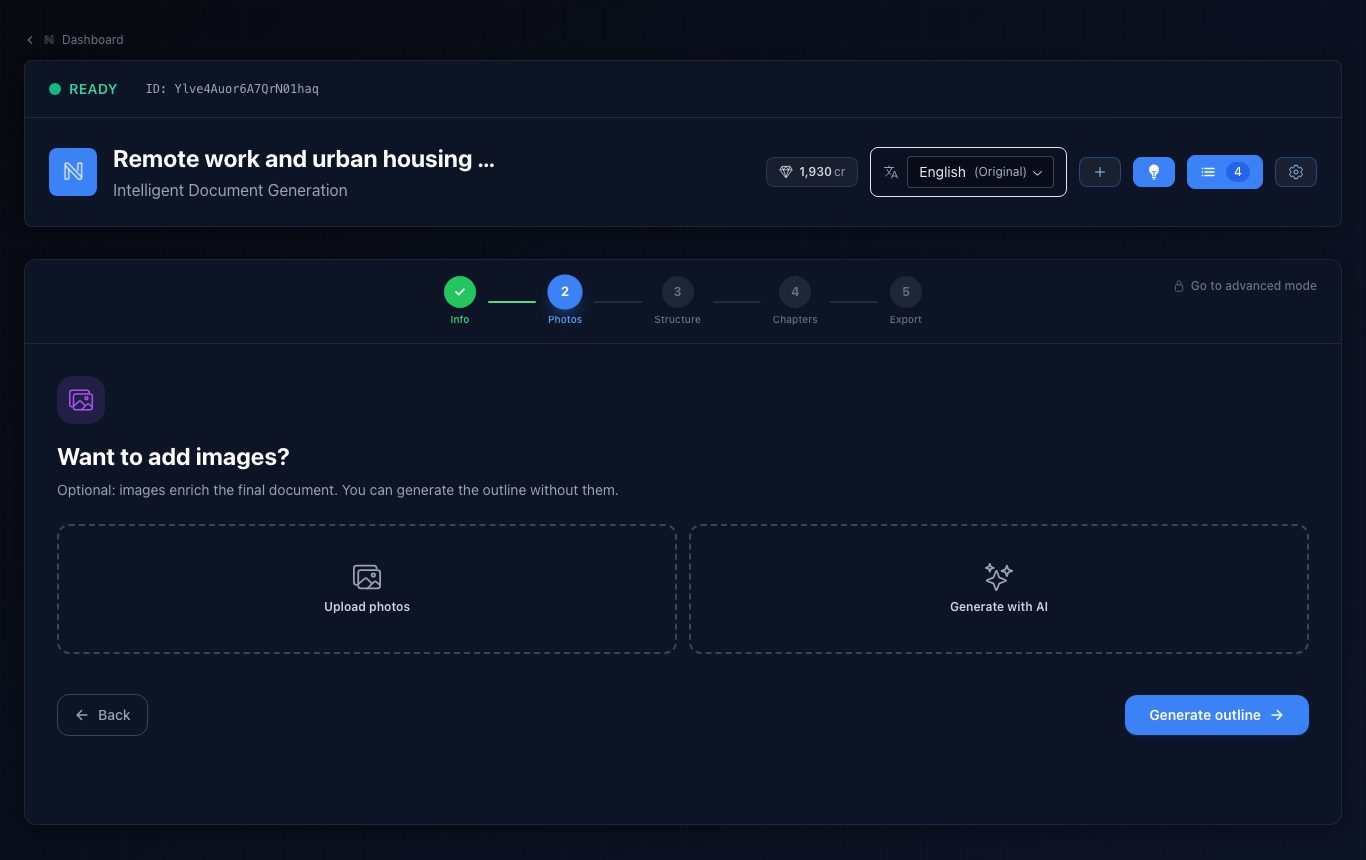
4. Photos (optional)
Upload photos or generate them with AI to include them in the document. If you do not need them, press “Generate outline”.
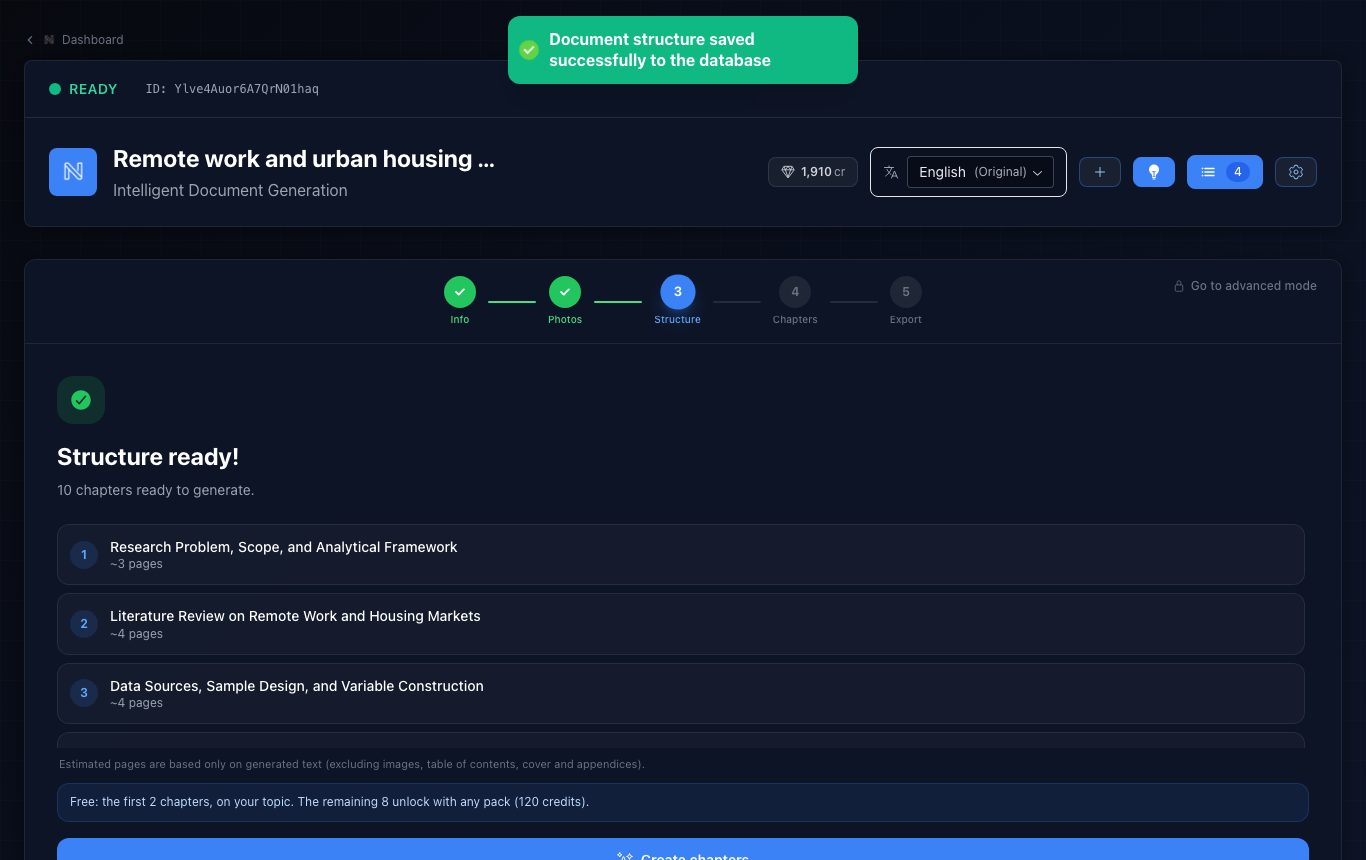
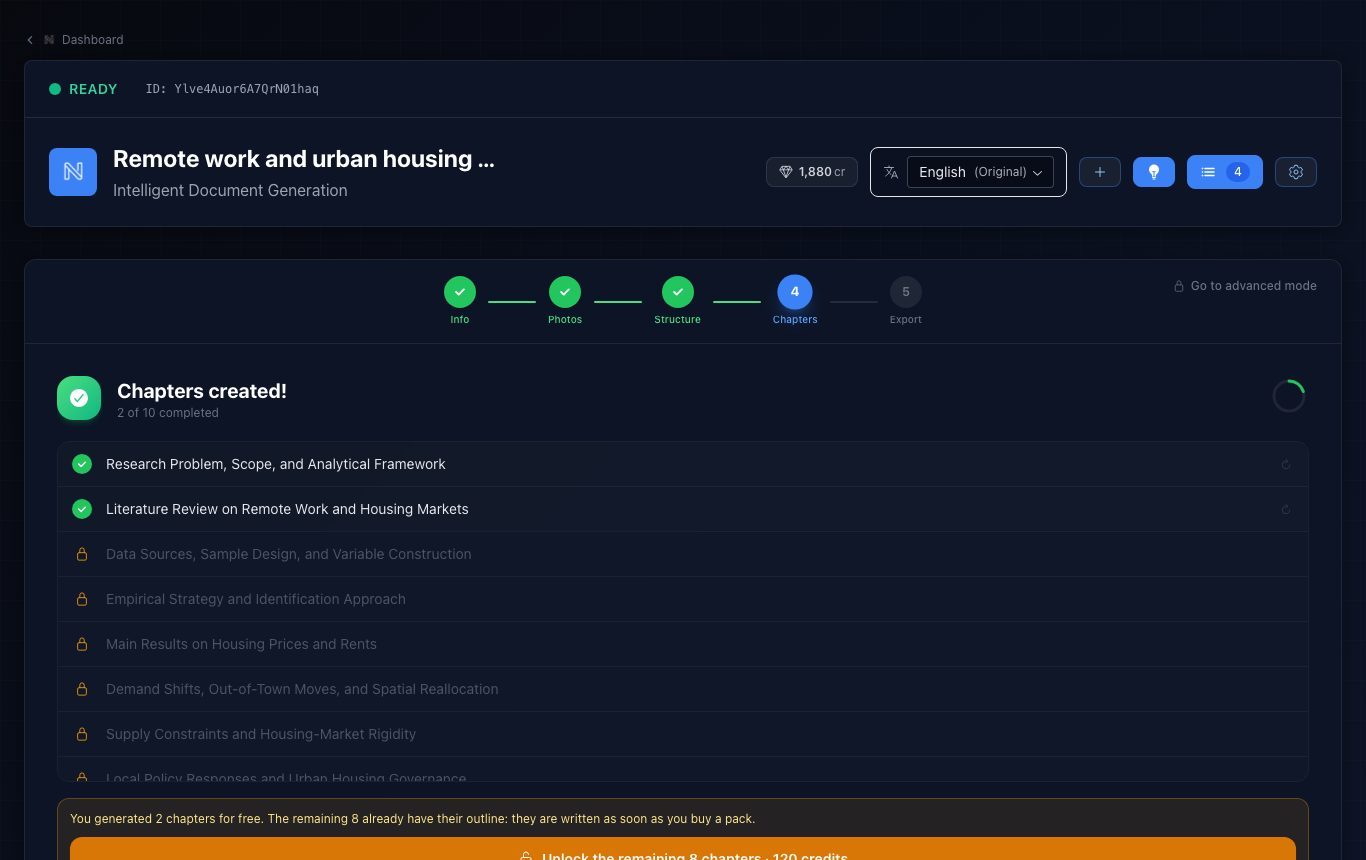
5. Outline and chapters
Nomos proposes an outline in about 20–30 seconds (20 credits). Review it and press “Create chapters”.
AI can make mistakes or invent data and citations. Always review the result before you use it.